
1. Why Windows 10 was retired
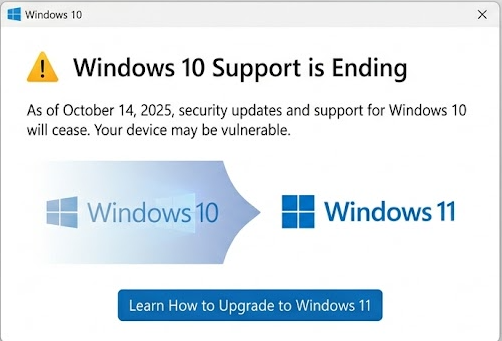
Every version of Windows has a fixed support lifecycle, and Windows 10 simply reached the end of its ten years. This was planned years in advance, so it is not a surprise rollout or a glitch.
- Microsoft officially retired Windows 10 on 14 October 2025.
- Windows 11 launched back in October 2021, and Microsoft has been nudging people across ever since.
- After retirement there are no more security patches, bug fixes or official Microsoft support.
- Your PC keeps working exactly as before. The difference is that it is now on its own with no safety net.
2. Why you need to upgrade now
The two reasons that matter are security and compatibility. Security is the urgent one.
Security risks
- New vulnerabilities are found constantly. Without patches they stay open on your PC permanently.
- Ransomware and malware increasingly target known, unpatched Windows 10 weaknesses.
- Your antivirus cannot patch holes in the operating system. Only Microsoft can do that, and it has stopped.
- Banks and business platforms are starting to flag or block unsupported operating systems.
Compatibility issues, already starting
This one creeps up slowly, then becomes a daily annoyance.
- New software and apps increasingly list Windows 11 as the minimum.
- Microsoft 365 will eventually drop Windows 10 support entirely.
- Hardware makers are writing new drivers for Windows 11 first.
- Chrome and Edge are already winding down support for older Windows versions.
3. Check if your PC can run Windows 11
Windows 11 has stricter hardware requirements than Windows 10. Here is what your PC needs, with the usual sticking point flagged.
Minimum hardware requirements
Processor
1 GHz or faster, 2+ cores, 64-bit
Memory (RAM)
4 GB minimum
Storage
64 GB or more free space
TPM
Version 2.0 required
Most common blocker on older PCs
Firmware
UEFI with Secure Boot enabled
Graphics
DirectX 12 with a WDDM 2.0 driver
Check in two steps, about 60 seconds
Step 1: Open Settings, then Windows Update
If you see "Windows 11 is ready" or a "Get Windows 11" button, you are compatible and can upgrade right there.
Step 2: Nothing showing? Run the PC Health Check
Download and run Microsoft's free PC Health Check app. It gives a clear pass or fail and tells you exactly which requirement is blocking you.
4. How to upgrade
There are three ways to get to Windows 11. Most people should use Option A. The others are for when the simple route is not offered, or when you want a completely fresh start.
Option A: Through Settings (easiest, keeps your files)
- Go to Settings, then Windows Update, then click Download and install Windows 11.
- Your files, apps and settings are all kept.
- It takes roughly 1 to 3 hours depending on your internet and PC speed.
- This is the best option if your PC is in good shape and you want zero hassle.
Option B: Windows 11 Installation Assistant
- Download it from microsoft.com/software-download/windows11.
- It runs on top of your existing Windows 10 and keeps your files and apps.
- This is the one to use if the Settings route is not offering you the upgrade.
Option C: Bootable USB (clean install)
- Use Rufus to create a bootable USB from the Windows 11 ISO.
- This wipes the drive and installs fresh, which gives the fastest, cleanest result.
- Best if your current install is slow or corrupted, or you are fitting a new drive.
- Back up all your files before you start. A clean install cannot be undone.
5. If your PC is not compatible: bypass options
There are ways to force Windows 11 onto hardware that fails the checks. We want you to know they exist, but we do not recommend using them. Here is the honest picture.
The two common bypass methods
- Registry tweak. Edit
HKEY_LOCAL_MACHINE\SYSTEM\Setup\MoSetupand addAllowUpgradesWithUnsupportedTPMOrCPU = 1to skip the TPM and CPU checks. - Rufus bootable USB. When creating the USB in Rufus, choose Extended Windows 11 Installation (no TPM, no Secure Boot), which strips the hardware requirements out of the installer.
Why we do not recommend bypassing the hardware checks
- Microsoft may quietly block future updates on unsupported hardware.
- The hardware exclusions are not arbitrary. Instability and driver problems are common.
- Security patches may not fully apply to configurations Microsoft does not support.
- There is no Microsoft support path if something breaks.
- You can end up with a less secure system than Windows 10 was.
Smarter options if your PC fails the check
- Under 5 years old, failing on TPM only: check the BIOS or UEFI settings. TPM is often present but switched off, and enabling it may be all you need.
- 5 to 7 years old: weigh the cost of a new PC against the risk of running unsupported software.
- 7 years or older: replacement almost always makes more sense. You get a faster, supported machine with a warranty.
6. Disk setup during a clean install
If you go the bootable USB route, you will hit a disk selection screen. Here is how to handle it so you do not accidentally wipe the wrong drive.
Starting fresh on one drive
- Select each partition on the target drive and click Delete until it all shows as unallocated space.
- Click New, and Windows creates the correct partitions automatically. You do not need to set sizes by hand.
- Windows makes four partitions: EFI (about 100 MB), MSR (16 MB), your main C: drive, and a recovery partition at the end.
Keeping another drive or dual booting
- Do not delete any partition you are not certain about. This is permanent and cannot be undone.
- If you are unsure which drive is which, unplug any drives you are not installing to before you boot the USB.
- Call us first if you want to dual boot. It is easy to get wrong.
7. FAQ: common problems answered
My SSD or HDD is not showing in the disk selection screen during install
This is common with NVMe SSDs, because the Windows 11 installer does not bundle every storage controller driver.
- At the disk screen, click Load driver.
- Have a second USB ready with the storage driver from your motherboard or SSD maker:
- Intel platform: Intel RST (Rapid Storage Technology) driver from Intel's site.
- AMD platform: AMD chipset driver from AMD's site.
- Samsung NVMe SSD: the Samsung NVMe driver. WD or Seagate NVMe: the driver from their support page.
- Alternatively, newer versions of Rufus can inject drivers into the installer before you create the USB, so no second USB is needed.
Do I have to create a Microsoft account? Can I skip it?
Windows 11 Home pushes you hard to sign in with a Microsoft account during setup, but you can skip it.
- Easiest, via Rufus before you create the USB: tick Remove requirement for online Microsoft account, and setup lets you create a local account from the start.
- During setup: disconnect from Wi-Fi at the sign-in screen, click Sign in options, then choose a limited or offline account.
- Backup trick: at the sign-in screen, enter
[email protected]with any password. It fails on purpose, then offers an offline account option.
Will I lose my files when upgrading?
- Upgrade via Settings or the Installation Assistant: your files, apps and settings are kept.
- Clean install via bootable USB: this wipes the drive. Back up to an external drive or the cloud before you start, no exceptions.
- We always recommend a backup before any operating system upgrade regardless. Drives pick the worst moments to fail.
What is TPM 2.0 and do I have it?
- TPM (Trusted Platform Module) is a security chip built into the motherboard. Windows 11 requires version 2.0.
- To check: press
Win + R, typetpm.msc, then press Enter. - If it shows "TPM 2.0 Ready", you are good.
- TPM 1.2 means present but not compatible with Windows 11.
- No TPM shown usually means it is disabled. Check the BIOS or UEFI under Security or Advanced, especially on PCs from 2017 to 2020.
- PCs from 2017 onward generally have TPM 2.0. Older than that, probably not.
How long does the upgrade take?
- Upgrade install (Settings or Assistant): about 1 to 3 hours, including the download, install and a couple of restarts.
- Clean install (bootable USB): 30 to 60 minutes for the install, then another 30 minutes or more for setup, drivers and updates.
- Slow internet or an ageing hard drive adds significant time to either option.
My PC failed the check. Should I upgrade it or buy new?
- Under 5 years old, failing on TPM only: check the BIOS first. Enabling TPM often fixes it without spending anything.
- 5 to 7 years old: get a free assessment and we will tell you honestly whether an upgrade is worthwhile.
- 7 years or older: replacement is almost always better value. Newer hardware, a warranty, and supported software from day one.